How it works
Pick. Pack. Go.
Everything PIKY does, step by step: what you pick, where it goes, and the gestures that do it.
Pick it where it is.
Press Option + Space in any app: PIKY’s card appears, and you’re Picking. Select text the way you always do, click files in Finder, or hold Option for Camera. Each one becomes a Pick, with the app it came from. Press Escape when you’re done; your Pack stays.
- PickIn any app: select, click, or frame.
- PackEverything in one Pack, in order.
- Go⌘ Return. It’s in the chat.
Hold Option. Your screen is the camera.
Pink corners outline what’s under the pointer: a card, a chart, a photo. Click, and PIKY keeps just that. Hovering makes no Pick. Where supported, slide two fingers to change the area. Or hold Option and drag across the area instead.
- 1 Hold ⌥ Option
- 2 Point at a card: pink corners show what a click takes
- 3 Click: just that card goes into your Pack
One Pack, in order.
Every Pick joins one Pack, in the order you picked it, saved on your Mac. Remove what you don’t need, or undo the last Pick with ↶. Up to 40 Picks, including up to 20 files or images.
Your texts travel together in one note, named after the Pack (PIKY Pack — Lisbon weekend.md); files and images go as they are. Text-only Packs paste as text.
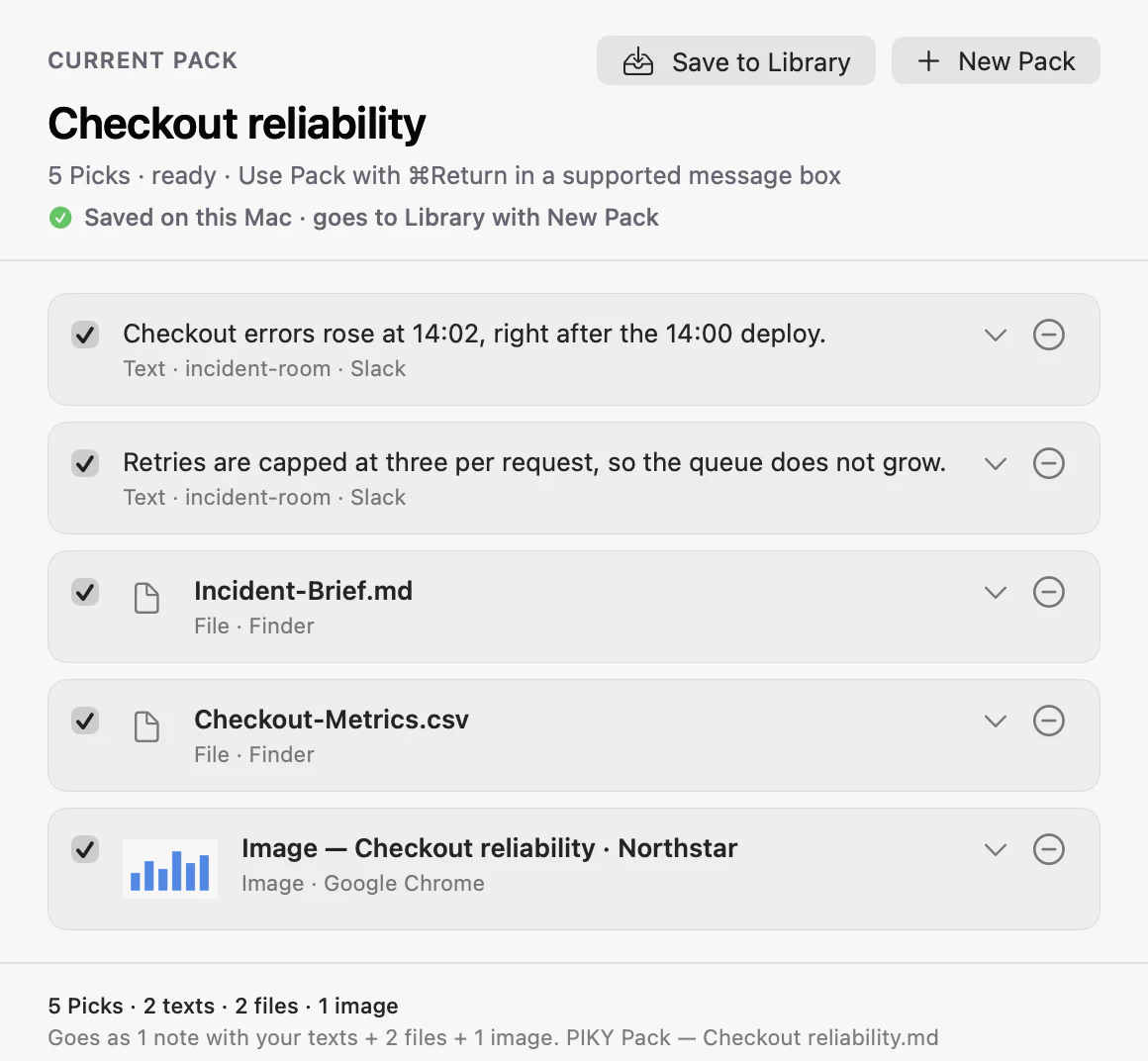
Into your chat, in one go.
Click where it should go, like an AI chat, Claude Code, Cursor or a Slack message, and press Command + Return. The whole Pack goes in together, and you press Send. PIKY never presses Send.
- ChatGPT
- Claude
- Gemini
- Claude Code in Terminal
- Codex
- Cursor
- GitHub Copilot
- Slack
- Check before you send. PIKY says what it offered and what it saw opened; check your draft and its attachments before you send.
- Paste it yourself. Anywhere else, open the Pack and choose Copy all, then press Command + V.
Save it today. Open it next week.
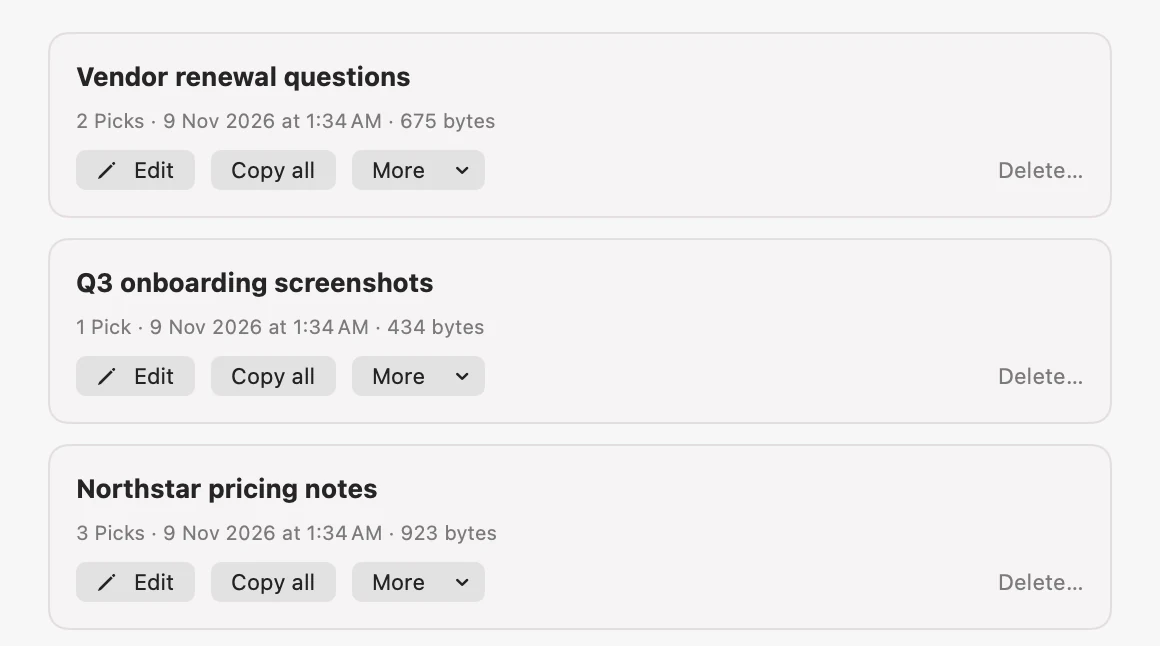
Start a new Pack and the last one moves to your Library, on your Mac. Open a Pack to use it in a new chat, or choose Copy all and paste it anywhere. Deleting a Pack removes PIKY’s copy, never your original files.
Go on. Be PIKY.
Questions? Help has the answers.